Article ID Code:GK-NET-02
Quick Diagnosis
Fault |
Fault Type |
Fault Symptom |
Repairable? (Yes/No) |
| No WiFi Option Available | Software Fault |
The Wi-Fi toggle or network list is completely missing in the system settings. | Yes |
| Cannot Connect to WiFi Network | Software Fault |
The network list is visible, but connection repeatedly fails or cannot be completed after entering the password. | Yes |
| Connected to WiFi but No Internet Access | Software Fault |
The system shows a successful Wi-Fi connection, but browsers and all applications cannot access the internet. | Yes |
| WiFi Module/Hardware Failure | Hardware Fault |
No Wi-Fi device is present in Device Manager, and the issue persists even after driver installation. | No |
| Weak WiFi Signal | Hardware Fault |
Low and fluctuating signal strength results in slow speeds or frequent disconnections. | Yes |
Solution
No WiFi Option Available
-
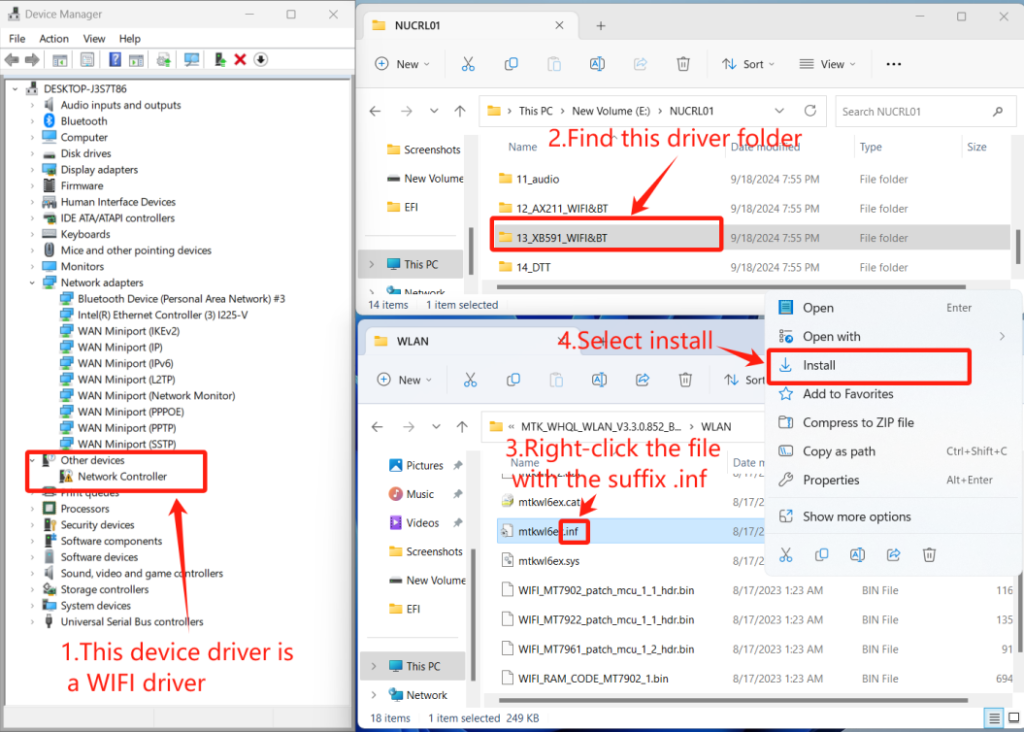
WiFi Driver Missing: The WiFi adapter is visible in Device Manager (even with a yellow exclamation mark, which almost always indicates a software issue).
- Reinstall the WiFi driver. Connect via a wired network or access the GEEKOM technical support website from another computer to download and install the WiFi driver.
-
WLAN-related services are not started or are disabled.
Check and restart the WLAN service:
- Press
Win + R→ typeservices.msc→ press Enter. - Locate the WLAN AutoConfig service:
- Double-click it → set Startup type to "Automatic".
- If its status is "Stopped", click the "Start" button.
- Restart the computer.
- Press
-
Airplane mode is stuck or the network adapter is hidden/disabled.
- Reset network settings: Settings → Network & Internet → Status → Network reset (this will clear all network passwords and takes effect after a restart).
- Turn off Airplane Mode: If there is an airplane icon in the taskbar, click to turn it off.
Cannot Connect to WiFi Network
-
Incorrect password input or case sensitivity issues
- Use a phone or another computer to successfully connect to the same WiFi to verify the password.
- Note: Passwords are case-sensitive, and special characters are easily mistyped.
- For corporate/public WiFi, confirm whether additional authentication (such as web page login) is required.
-
Forget the network and reconnect (most effective and quickest step)
- Settings → Network & Internet → WiFi → Known networks → Find the problematic network → "Forget".
- Rescan → Select the network → Re-enter the password to connect.
- Additionally: Restart the router (unplug the power for 10 seconds) and the computer.
Connected to WiFi but No Internet Access
-
Restart the router and computer.
- Restart the computer + router (unplug the power for 10 seconds) + test the same WiFi with a phone/other device to check if internet access is normal.
- If other devices work normally → the issue lies with the computer;
If none of the devices work → the issue is with the router/ISP.
-
Manually configure DNS:
- Right-click the network icon → Open "Network & Internet settings" → WiFi → Known networks → Your WiFi → Properties.
OR: Control Panel → Network and Sharing Center → Change adapter settings → Right-click the WiFi adapter → Properties. - Double-click "Internet Protocol Version 4 (TCP/IPv4)".
- Select "Use the following DNS server addresses":
- Preferred DNS:
8.8.8.8 - Alternate DNS:
8.8.4.4(Google Public DNS) Or try Alibaba DNS:223.5.5.5/223.6.6.6
- Preferred DNS:
- Click OK → Close all windows → Disconnect and reconnect to WiFi.
- Right-click the network icon → Open "Network & Internet settings" → WiFi → Known networks → Your WiFi → Properties.
-
Other checks:
- Turn on the mobile phone's WiFi hotspot and have the computer connect to it → If internet access is possible via the hotspot, the issue lies with the original router; if not, the issue is with the computer.
WiFi Module/Hardware Failure
Reinstall the WiFi driver. Click here to view the installation tutorial. If there is still no WiFi-related hardware or functionality visible in Device Manager and the taskbar, it is highly likely that the network card hardware itself is damaged. It is recommended to report this issue to GEEKOM customer service.
Weak WiFi Signal
Poor WiFi signal is most likely due to a malfunction of the network card's WiFi antenna, such as the WiFi antenna being dislodged, disconnected, or deformed.
-
WiFi Antenna Dislodged
Antenna Connection Status Corresponding WiFi Signal WiFi antennas typically feature a snap-fit design. Dislodgement of the snap-fit mechanism commonly occurs due to vibrations during disassembly/transport or loosening after repeated connection/disconnection. In most cases, it can be re-snapped into place without tools, but the operation must be performed with extreme gentleness.
- The end of the antenna cable is a small, round connector (U.FL/IPEX connector), which mates with a corresponding small, golden, raised socket (contact pin) on the WiFi card.
- Vertical Alignment: Align the connector directly above the socket (do not tilt it! Tilting can cause damage).
- Gentle Pressing: Use the tip of tweezers or a finger to press down evenly until a faint click is heard (indicating the snap-fit has locked).
- Verification: Gently tug the cable (horizontally). It should not come off easily (but do not pull hard!).
- If two antennas are dislodged, they should generally be reconnected to their corresponding color-coded sockets——Gray (AUX) / Black (Main).
- WiFi Antenna Broken
A damaged antenna can only be resolved by purchasing a new one to replace the original. It can be bought directly from e-commerce platforms. Please note that the WiFi antenna lengths vary across different GEEKOM models. For specific dimensions, please contact customer service.
 |
 |
-
WiFi Antenna Physically Damaged
Root Cause Analysis: The WiFi antenna was deformed (flattened) due to mechanical compression from adjacent components during the assembly process, as a result of improper placement.
Secure the antenna in place with tape to prevent it from shifting or moving inside the casing.
Comments
0 comments
Article is closed for comments.