Article ID Code:GK-SPE-01
This article applies to some GEEKOM mini PC models (A8 / AX8 Pro / A8 Max / AX8 Max / AE8 Max). The firmware protection feature takes effect when the CPU platform support conditions are met. Please verify compatibility before updating.
Prerequisites
- Back up important files.
- When updating the BIOS, ensure the power supply is stable and do not force a shutdown.
BIOS & Driver Download
Two update methods are provided for each model:
- Windows Direct Update (double-click the .exe file).
- BIOS update via USB drive.
- BIOS Update Tutorial:https://service.geekompc.com/faq/update-bios-ec/
Applicable Models |
USB-disk Updata(High Security) |
Windows Update |
Driver Update |
A8 |
|||
AX8 Pro |
|||
A8 Max |
|||
AX8 Max |
|||
AE8 Max |
Video Tutorial
Illustrated Tutorial
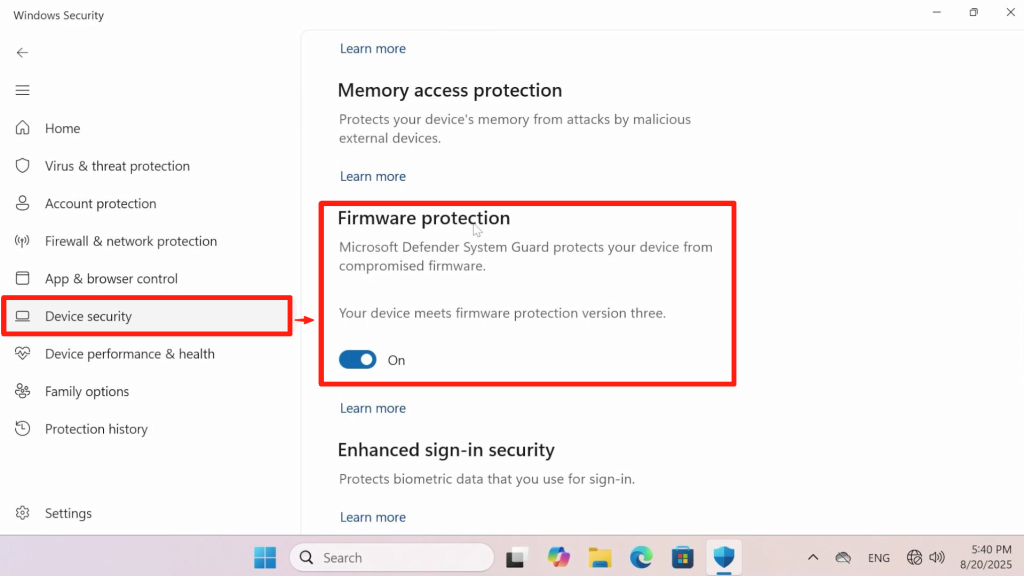
Process Flow:Check Compatibility → Update BIOS → Install DRTM Driver → Reboot → Verify in Windows Security Settings whether Firmware Protection is enabled.
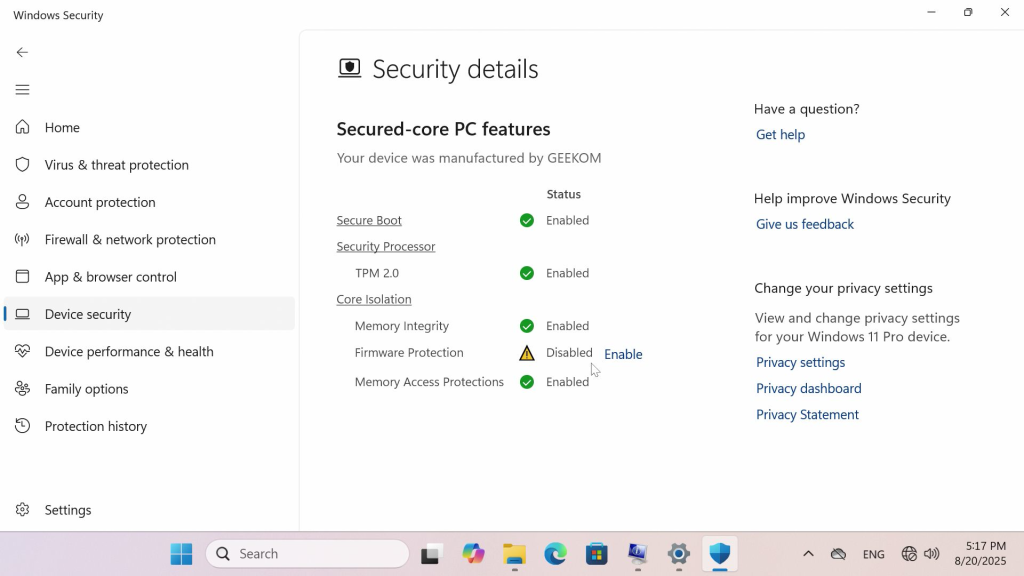
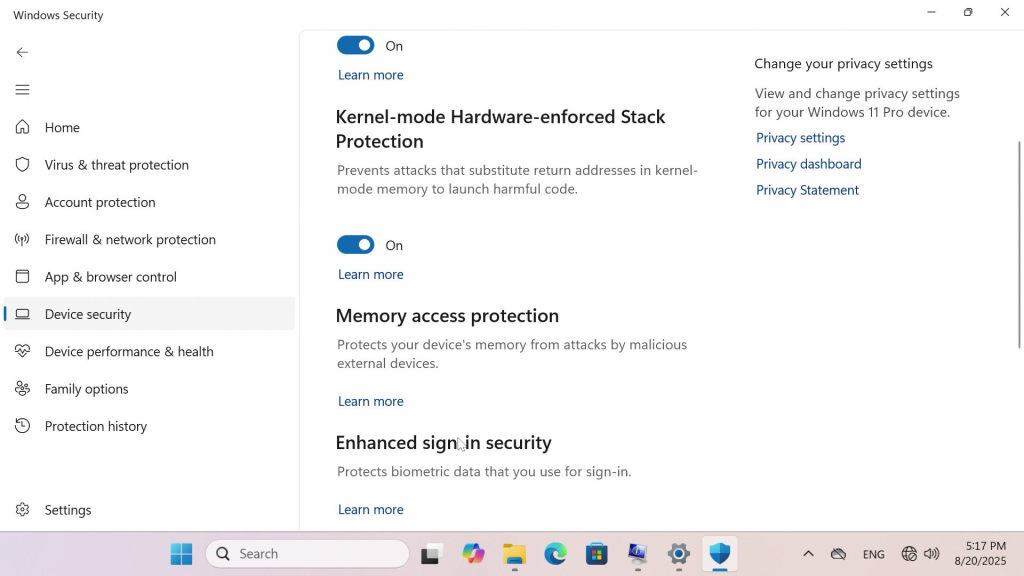
1.Check Security Settings
Navigate to: Windows Security → Device Security → Core Isolation
2.Update BIOS
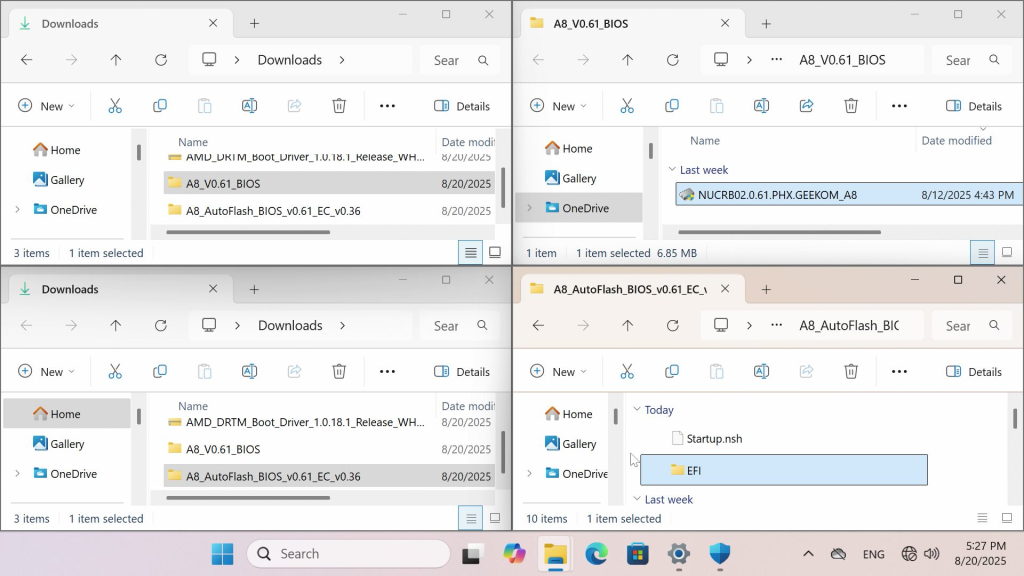
After downloading the latest BIOS version, if it is an executable (.exe) file, simply run it as an administrator. The machine will then begin the update automatically.
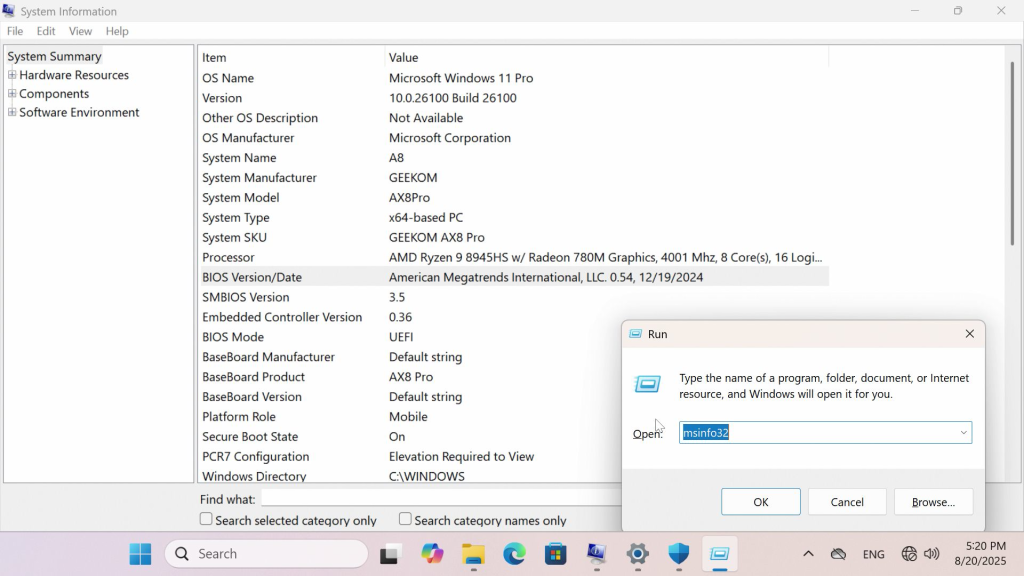
2.1 Check the current BIOS version.
On the desktop, press the key combination Win + R, then enter "msinfo32" in the pop-up dialog box to check the current BIOS version.
2.2 Run the downloaded latest BIOS file.
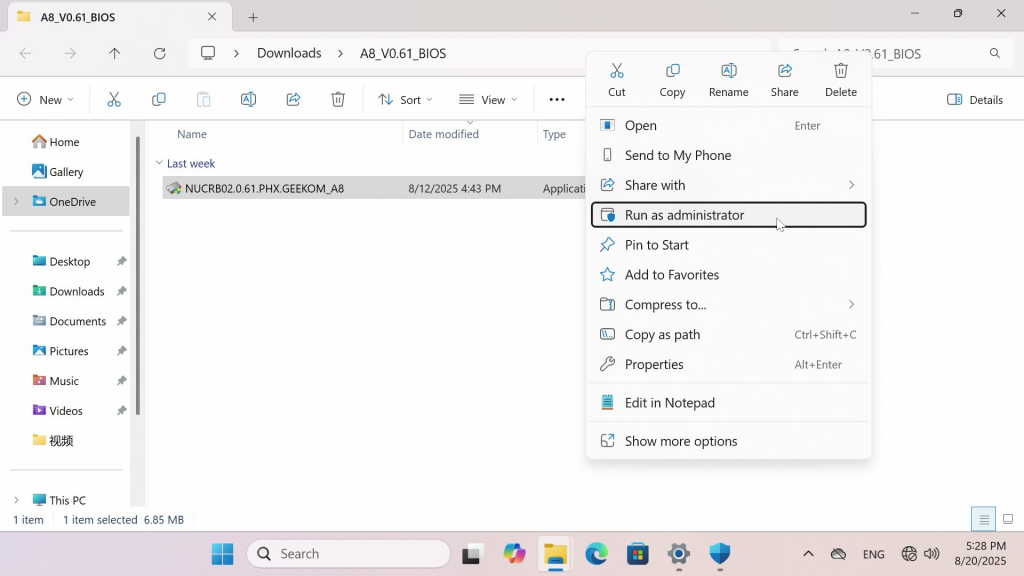
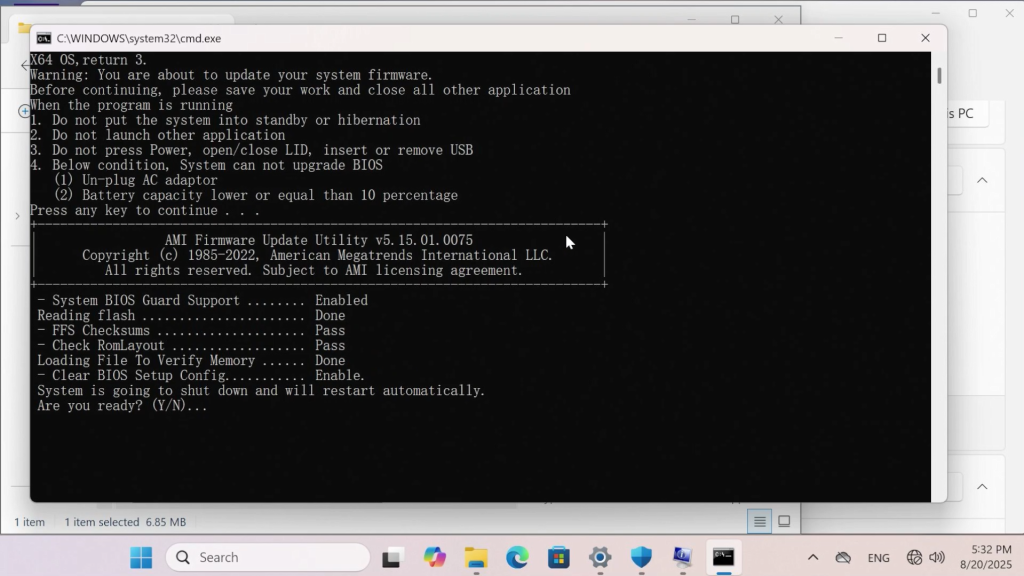
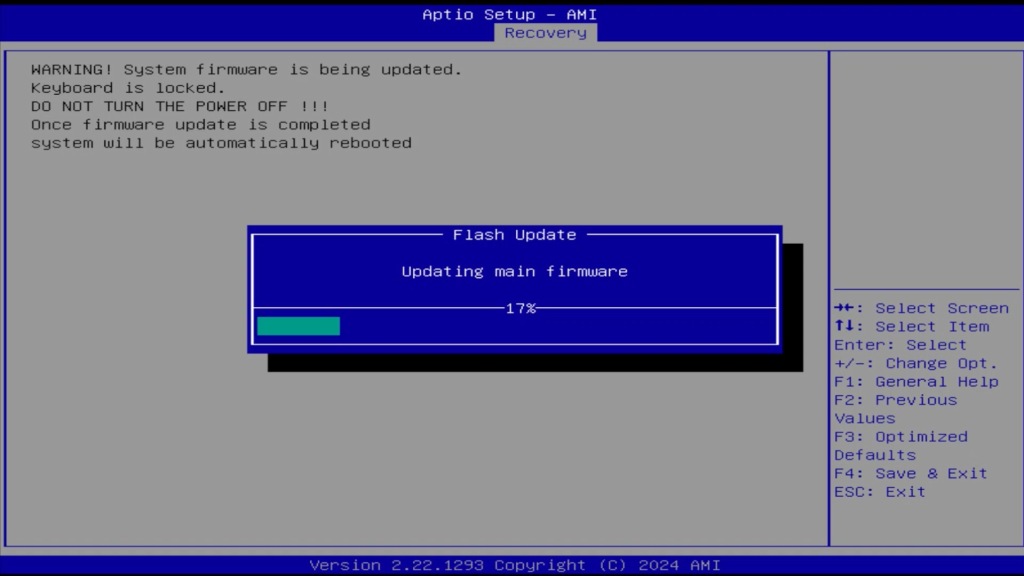
2.3 Type 'Y' to proceed with the update.The system will then restart and enter the BIOS update mode automatically. No manual operation is required. Wait for the process to complete and the system to reboot.
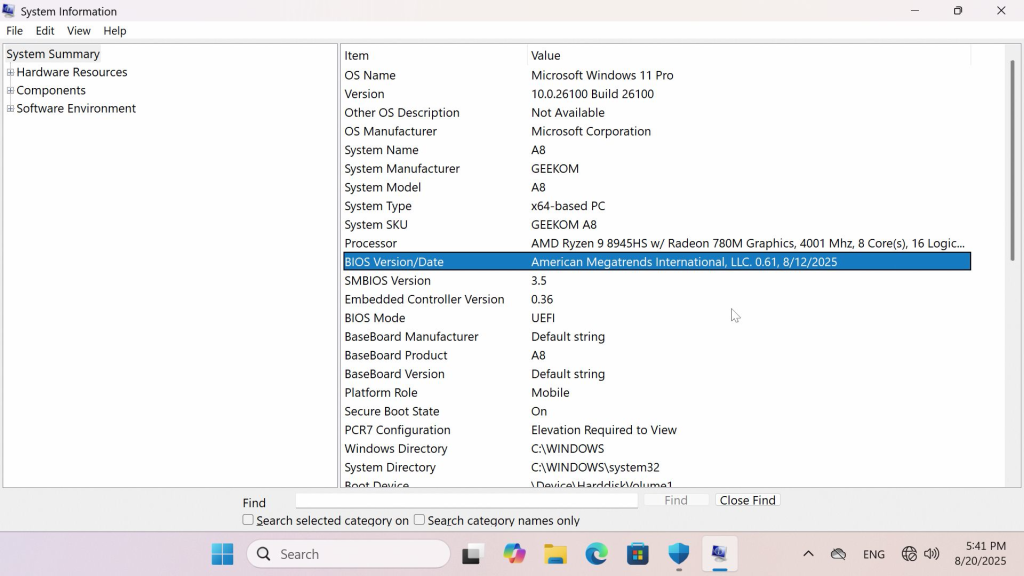
2.4 After rebooting, enter the system and recheck the BIOS version.
2.5 The current version is already the latest, which indicates a successful update. The firmware protection feature can now be enabled by installing the DRTM driver.
3.Install DRTM Driver
After updating the BIOS, an unknown device will appear in the Device Manager. You will need to install its driver at this point.
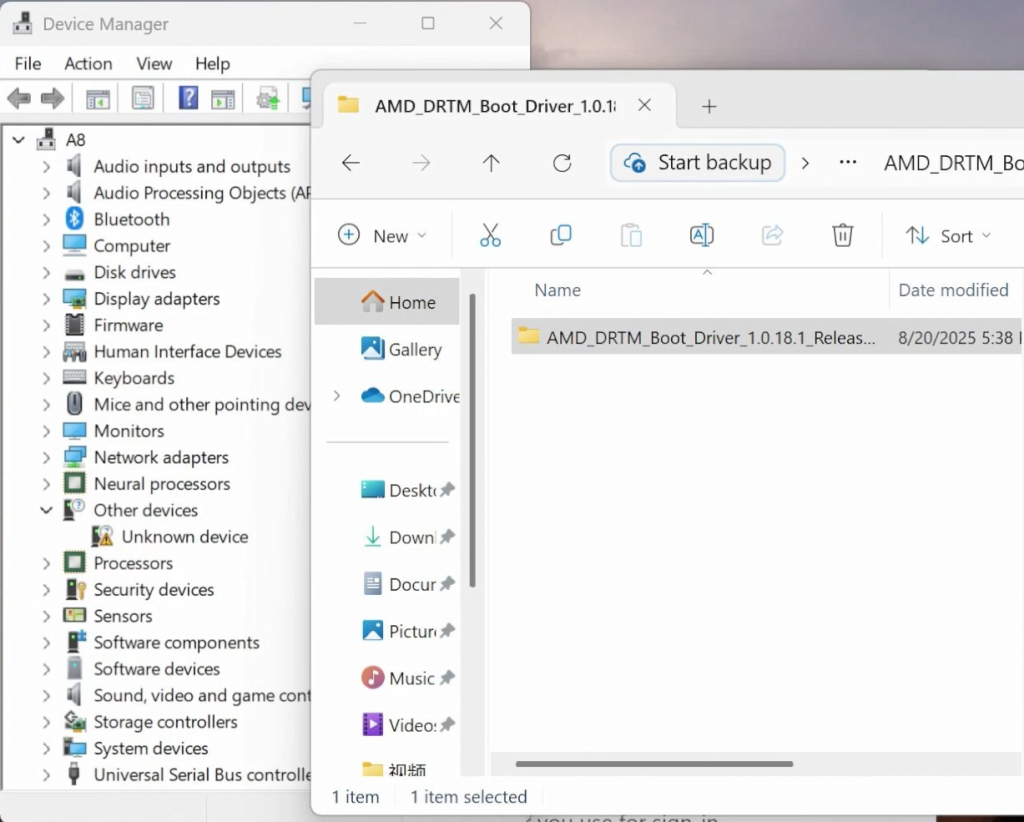
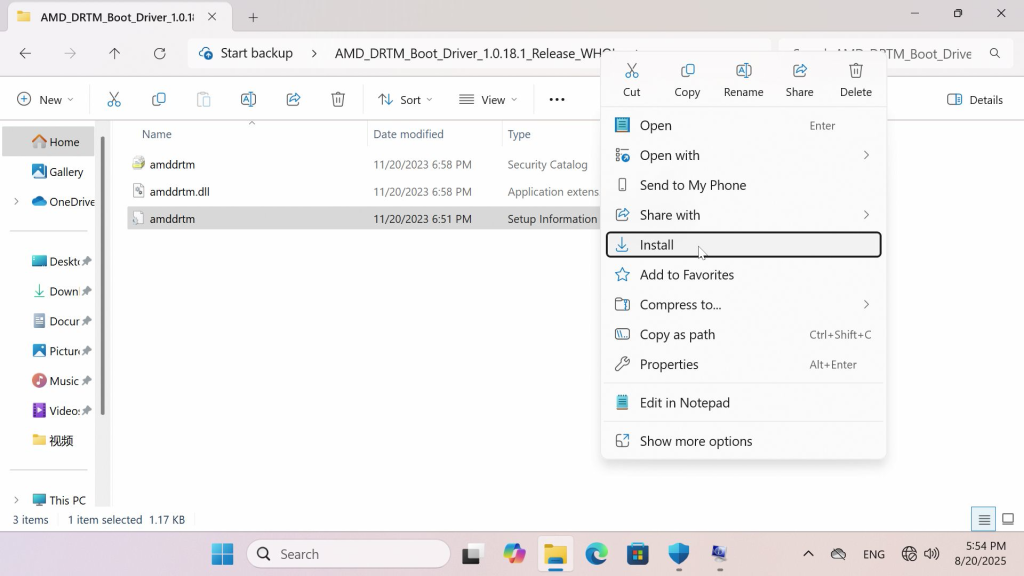
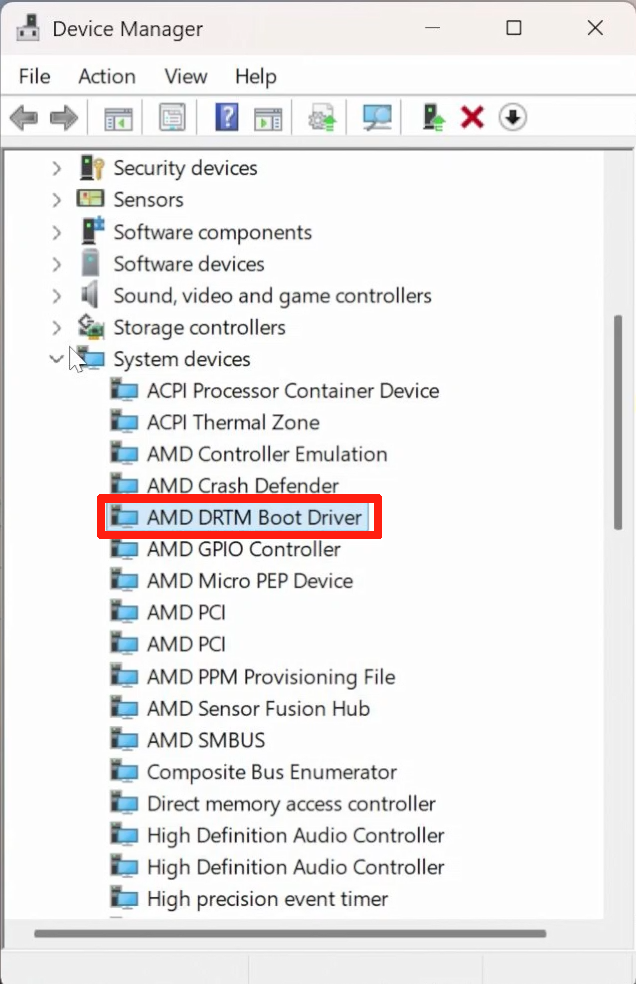
Installation successful. A system restart is now required. The firmware protection feature in the security settings will be enabled after rebooting.
4.Confirm that the firmware protection feature is enabled
Reopen the security settings in Windows to check.
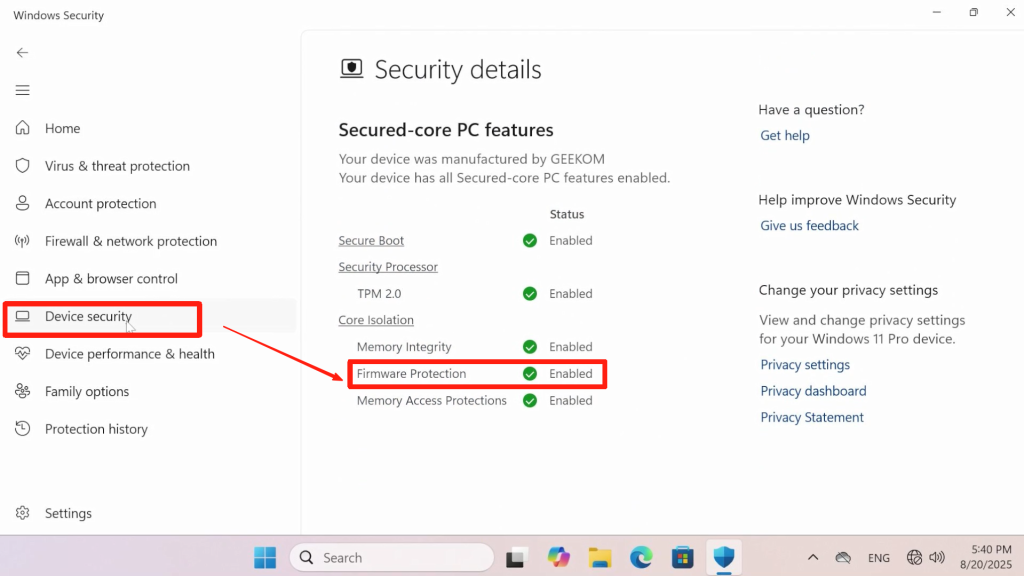
Thank you for watching. If there are any mistakes, your corrections are welcome.
Comments
0 comments
Article is closed for comments.