Article ID Code:GK-SYS-16
Quick Diagnosis
Fault Type |
Fault Symptoms |
| System Component / Service Abnormality | Update stuck at a certain percentage or error codes appear (e.g., 0x80070002, 0x800f081f). |
| Insufficient C Drive Space | Update download completes but installation fails, indicating insufficient space (usually requires 10~30GB of free space). |
| Network Issues | Update stuck at "Downloading" or progress repeatedly resets (unstable network/DNS/VPN issues). |
| Driver / Hardware Conflicts | Blue screen during update or rollback after restart (driver incompatibility or external device interference). |
| Security Software Interference | Update fails directly or cannot proceed (antivirus/firewall blocking). |
| Update File Corruption | Same update repeatedly fails or checksum errors occur (cache or download abnormalities). |
| System Reserved Partition Failure | Prompt "We couldn’t update the system reserved partition," common in major version upgrades (e.g., 23H2→24H2/25H2). |
| TPM Abnormality | Prompt "Must support TPM 2.0" or failure during system detection phase. |
Solutions
System Component / Service Abnormality
- Run Windows Update Troubleshooter
Path: Settings → System → Troubleshoot → Other troubleshooters → Windows Update → Run
2. If there is a string of error codes
Directly Google search the code to determine the probable cause of failure.
Refer to Microsoft's official documentation: Windows Update error code list by component | Microsoft Learn
3.Try manually installing Windows updates (bypass automatic update)
For example, KB5072033:
Visit Microsoft Update Catalog: https://www.catalog.update.microsoft.com
Search for “KB5072033,” download the .msu file for “Windows 11” x64, and double-click to install.
Insufficient C Drive Space
Uninstall unused software, move personal files (Documents, Downloads, Videos) to other drives, and ensure at least 20GB of free space.
Network Issues
Windows Update requires a stable network environment; it is not recommended to close the update window during the update process. If the update fails due to this issue:
- Switch network: Prefer wired network (more stable than WiFi), avoid public WiFi;
-
Disable VPN/proxy and firewall, then retry downloading.
Driver / Hardware Conflicts
- Check external devices: Disconnect all unnecessary external devices (USB drives, external hard drives, printers, docking stations, etc.), keep only keyboard and mouse, and try updating again.
-
Update / Roll back drivers
Prioritize updating graphics card, chipset, and network card drivers; you can find the corresponding models for updates here: Geekom
-
Install a clean system
If unable to upgrade the system through Windows Update, you can use the official Microsoft system installation tool to install a clean system (without drivers).
https://www.microsoft.com/en-us/download/details.aspx?id=108398
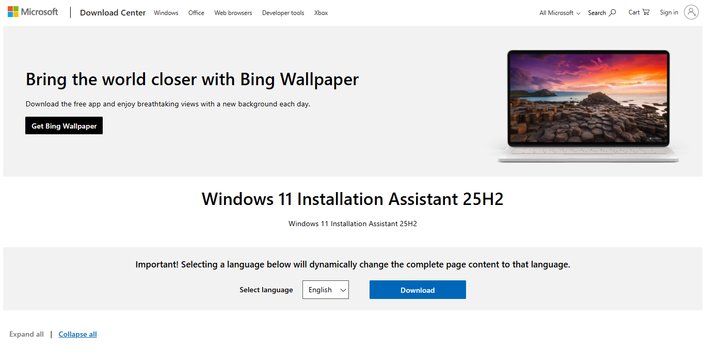
Note that installing a clean system requires backing up important data in advance and downloading the driver package Geekom; as long as the installed system is Win11 Pro, no need to reactivate Windows.
Security Software Interference
Completely exit third-party antivirus software, retry the update, and restore protection after the update completes.
Update File Corruption
Try manually installing Windows updates (bypass automatic update)
For example, KB5072033:
Visit Microsoft Update Catalog: https://www.catalog.update.microsoft.com
Search for “KB5072033,” download the .msu file for “Windows 11” x64, and double-click to install.
System Reserved Partition Failure
Reference document: GEEKOM_Unable-to-update-system-to-reserved-partition_V1.pdf
TPM Abnormality
-
First, update BIOS on the official websiteGeekom, disable SecureBoot option in BIOS, then check for updates.
How to disable Secure Boot in the BIOS Menu? – GEEKOM Help Center
- If still unable to update the system successfully, upgrade the system version by reinstalling
1. Visit the official Microsoft website to download WIN11 25H2 system and perform a fresh install using the official installation assistant Download Windows 11
2. You can also download the system version adapted to your computer from the GEEKOM technical support website Geekom
- If you have multiple GEEKOM devices and some have successfully upgraded:
Because TPM status is hardware-bound, you can swap the SSD of a successfully upgraded device with the problematic device, then update the system.
Note: BitLocker must be turned off before swapping, or it will trigger a lock. After swapping, resetting the PIN is required, which is normal.
Comments
0 comments
Article is closed for comments.