Article ID Code:GK-BSOD-01
Click on the corresponding option to quickly jump to its solution.
Can Boot to Desktop Normally After a Blue Screen |
|
Reinstall Drivers(Universally Effective) |
|
Enter Safe Mode(Advanced Repair) |
Reinstall the (Operating) System (Final Solution) |
System Reset By Setting(Quick & Thorough) |
Can Boot to Desktop Normally
-
Reinstall Drivers
Most blue screens are caused by unstable drivers or system crashes and can be resolved by updating or reinstalling the drivers.
-
Update Windows Drivers
Method A:Settings → Windows Update → Check for updates (Install all available updates and restart).
Method B:
Use the driver installation assistant provided by the CPU brand's official website to automatically update all drivers for the current device to the latest version. -
Reinstall the original Windows drivers for GEEKOM devices:https://service.geekompc.com/
Taking the IT15 driver download as an example
-
-
Enter Safe Mode to test if the blue screen still occurs.
In Windows Safe Mode, the system automatically isolates all drivers and third-party programs from running. This effectively helps determine the cause of a blue screen error.
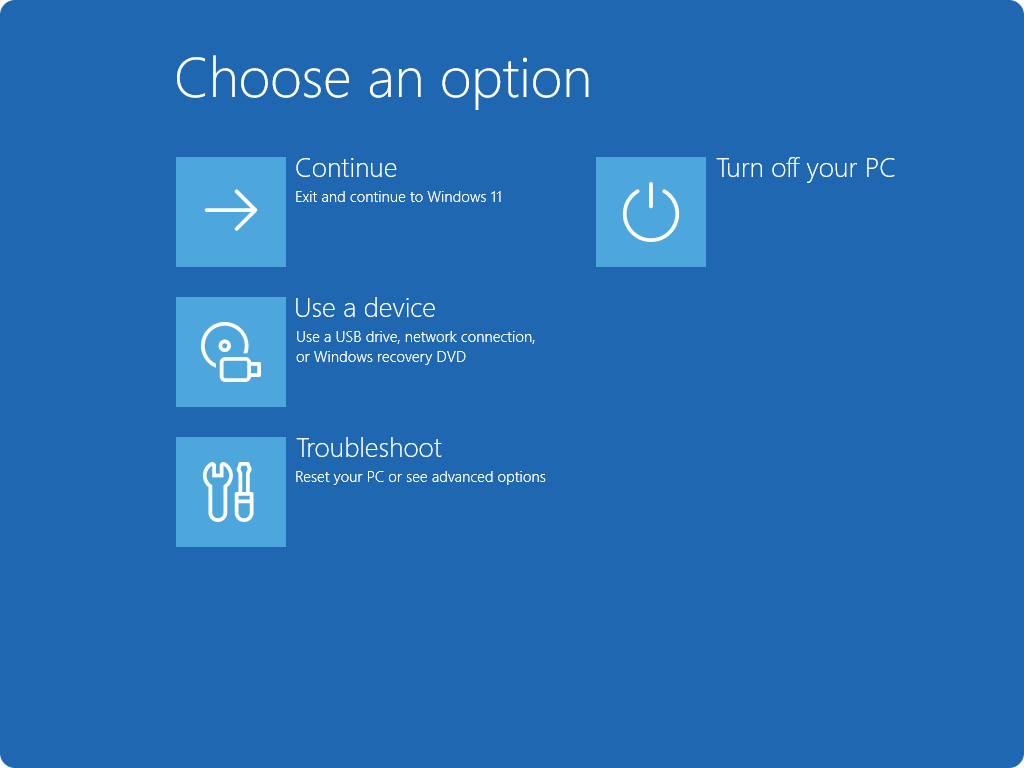
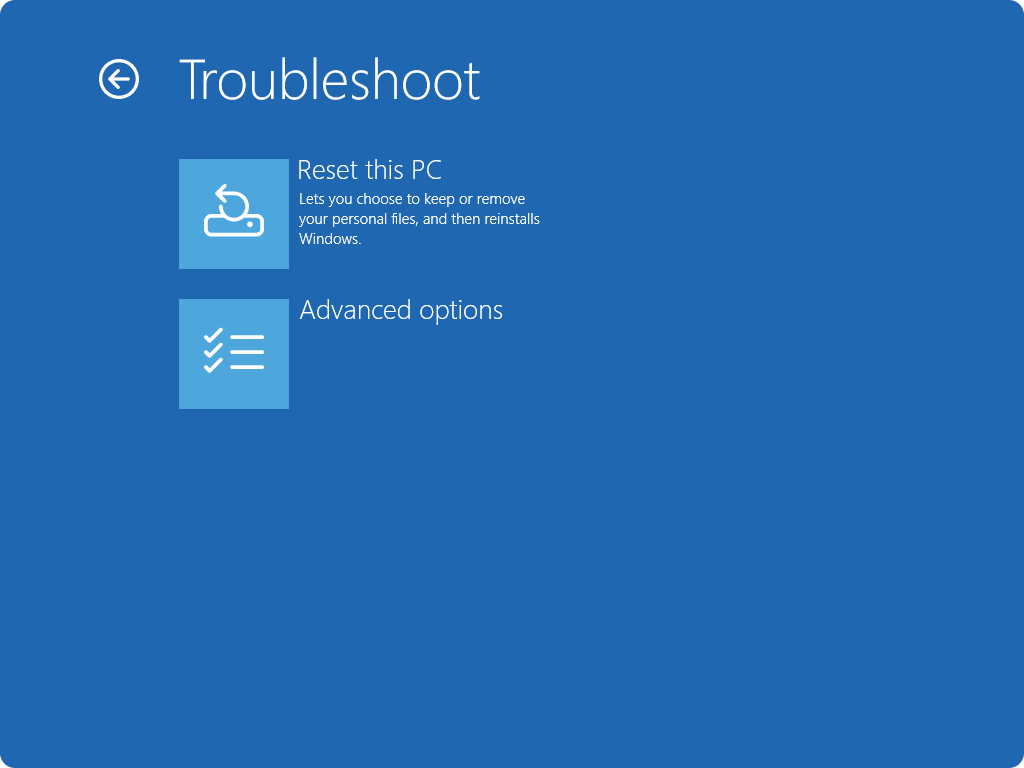
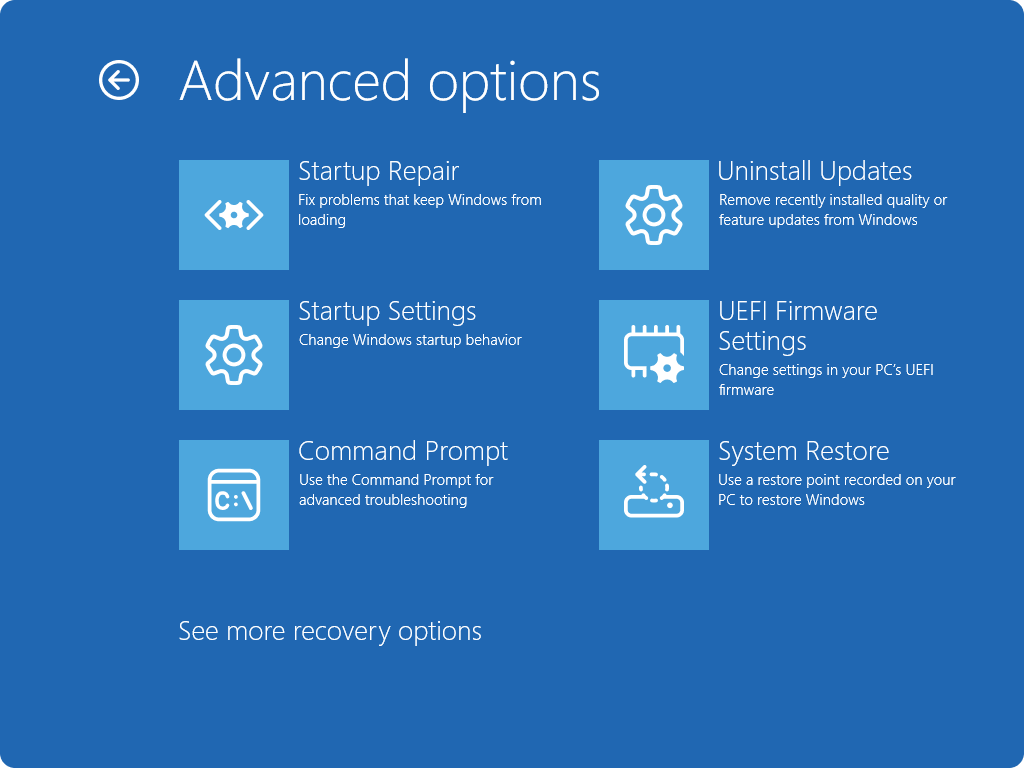
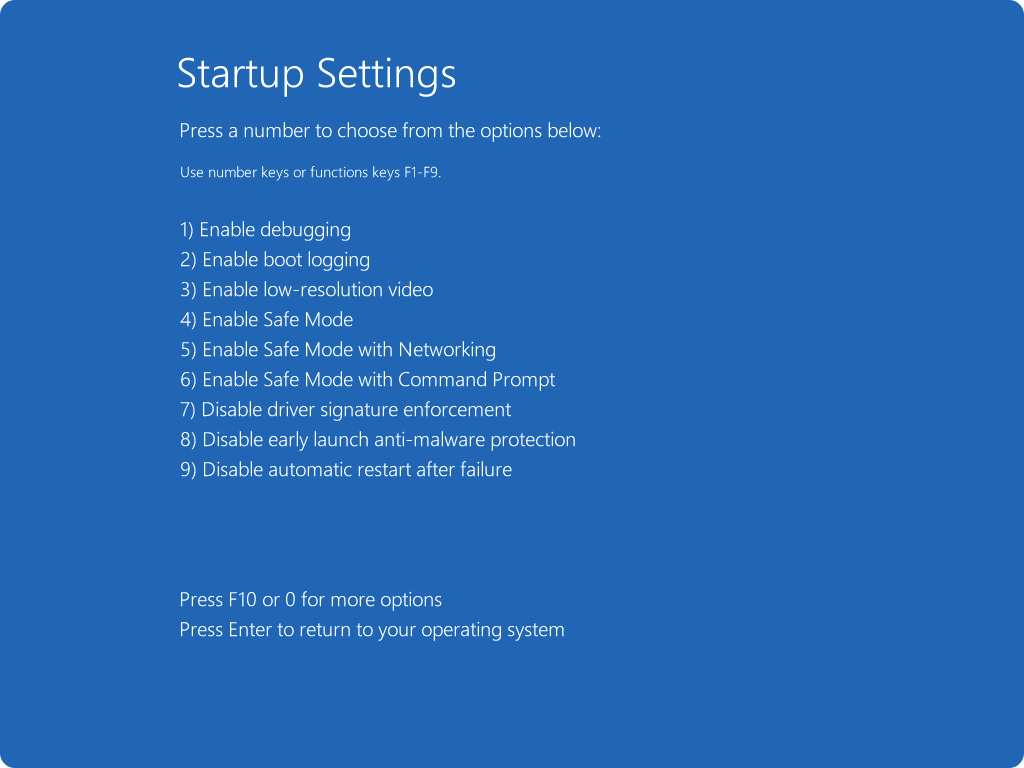
After a blue screen, force restart several times (by holding down the power button) to enter the recovery environment → Troubleshoot(step1) → Advanced options(step2) → Startup Settings(step3) → Restart → Press F4 to enter Safe Mode(step4).
Step1
Step2
Step3
Step4
If there is no blue screen in Safe Mode → the issue is with third-party software/drivers.
If there is a blue screen in normal mode → the issue is with hardware/system files.Another method to enter the recovery environment: At the lock screen, hold down the Shift key, then use the mouse to click Restart. Wait for the system to reboot and load into the recovery interface before releasing the Shift key, as shown in the figure below.
-
System Reset
If you have already tried reinstalling drivers and updating the system but still cannot identify the specific cause of the blue screen error, it is recommended to reset the system. After the reset, the operating environment will be restored to its factory settings.
If the blue screen error persists after the reset, it is highly likely to be a hardware failure of the device. In this case, it is advised to contact here: GEEKOM Customer Service
-
Reset options
Here's a list of options when resetting your PC:
Option
Description
Keep my files
Also known as Refresh, this option reinstalls Windows while keeping your personal files intact. It removes apps and settings but preserves your documents, photos, and other personal data.
- Restore preinstalled apps: when enabled, any customizations from the PC manufacturer are applied
Remove everything
Also known as Reset, this option reinstalls Windows and removes all your personal files, apps, and settings. It's ideal for a fresh start or when you are giving away or selling your PC.
- Clean data: when enabled, it removes files and cleans the drive. If you're planning to donate, recycle, or sell your PC, use this option. This might take some time, but it makes it harder for other people to recover files you've removed
Cloud download
This option downloads a fresh copy of Windows from the cloud, ensuring you get the latest version with all updates. It's useful if your local files are corrupted or missing. Local reinstall
This option uses the files already on your PC to reinstall Windows. It's faster if you have a slow internet connection but may not include the latest updates. Note: The data erasure functionality is targeted at consumers and does not meet government and industry data erasure standards.
-
Reset your PC from Settings:
1.In the Settings app on your Windows device, select System > Recovery or use the following shortcut:
2.Select Reset PC
3.Choose from the options and/or settings in the reset options table
-
Stuck in Blue Screen Restart Loop
When the device is stuck in a continuous blue screen restart loop, it is generally very difficult to restore the original system. The only way to recover the device's functionality is through a system reset or reinstallation (this operation will not affect Windows activation).
If the blue screen error persists after the reset, it is highly likely to be a hardware failure of the device. In this case, it is advised to contact here: GEEKOM Customer Service
-
System Reset By WinRe
-
Access the Windows Recovery Environment
After a blue screen, force restart several times (by holding down the power button) to enter the recovery environment
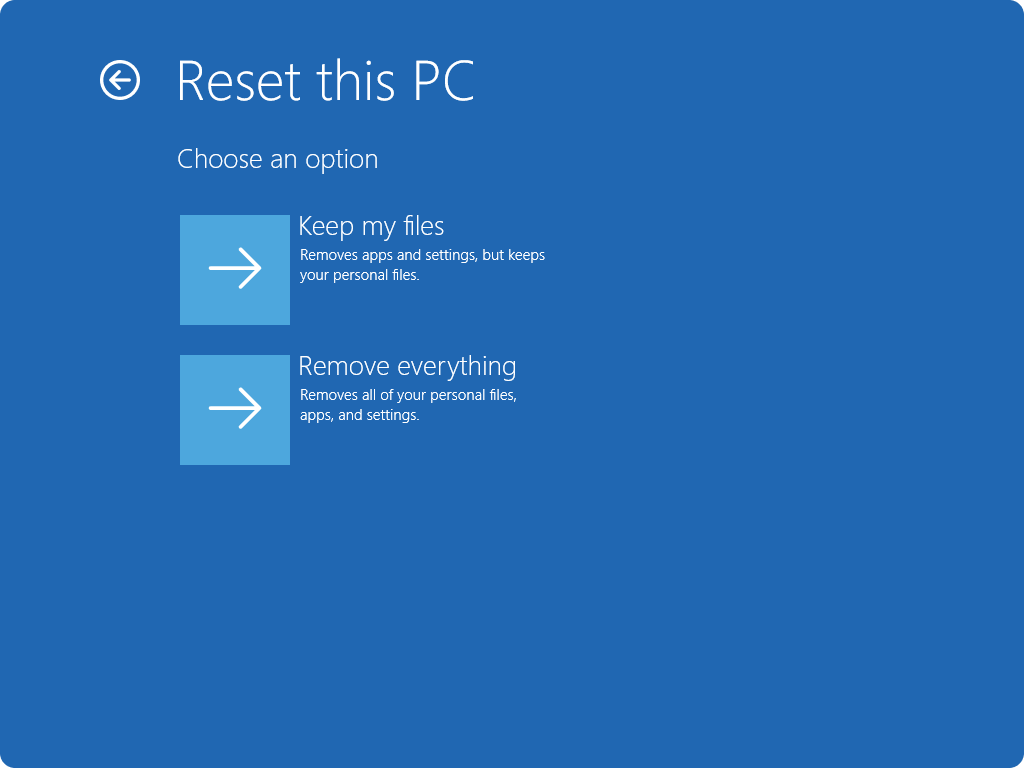
- Once in Windows RE, select Troubleshoot > Reset this PC > System Restore
-
Choose from the options and/or settings in the reset options table
-
-
Reinstall the (Operating) System
Refer to this tutorial:https://service.geekompc.com/faq/how-to-install-windows-system/
Comments
0 comments
Article is closed for comments.