Article ID Code: GK-MMP-01
Currently, GEEKOM laptops can be divided into the X14 Pro and X16 Pro series based on size. According to the interface design, both models can connect external monitors via the side USB-C ports and HDMI interface.
The specifications of the interfaces that support display output are as follows:
Model | Interface | Display Output Specifications | Input/Output Power | Maximum Supported Number of Connected Monitors |
X14 Pro | USB4(40Gbps) x 2 | DP1.4: 4K144HZ or 8K30HZ | Input: 65W Output: 7.5W | 3 |
HDMI2.0 x 1 | HDMI2.0: 4K60HZ | Not Supported | ||
X16 Pro | USB4(40Gbps) x 1 | DP1.4: 4K144HZ or 8K30HZ | Input: 65W Output: 7.5W | 3 |
USB-C(10Gbps) x 1 | DP1.4: 4K144HZ or 8K30HZ | Input: 65W Output: 7.5W | ||
HDMI2.0 x 1 | HDMI2.0: 4K60HZ | Not Supported |
X14 PRO Display Interface Location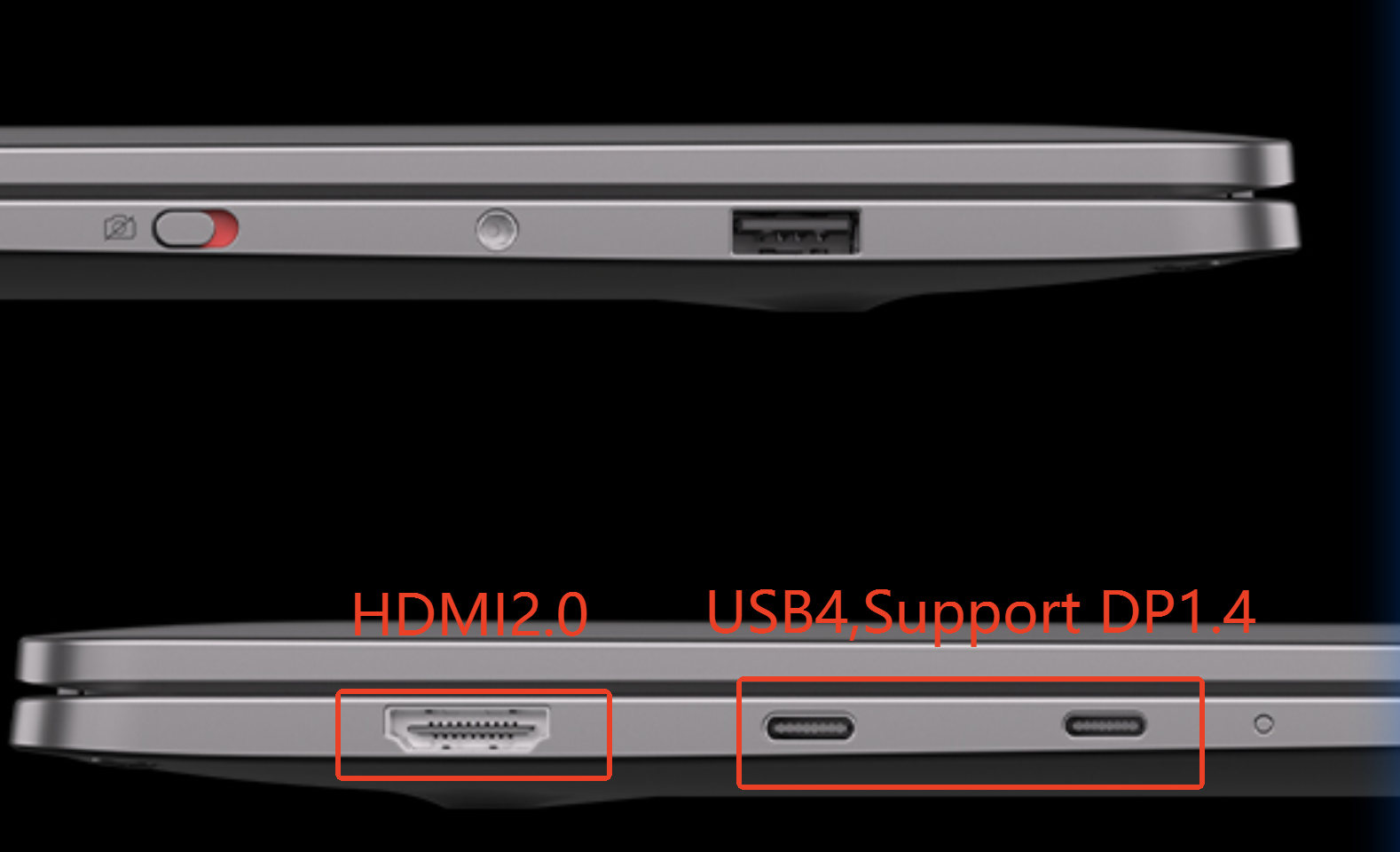
X16 PRO Display Interface Location
Monitor Adaptation Software
The Intel GPU built-in graphics driver also includes display management software—Intel Graphics Soft. This software is quite powerful and offers more detailed functionality than the system’s built-in display settings. When connection issues occur, this software often resolves them. You can search for this application in Windows to use it.
FAQ
1. Can the number of connected monitors be increased through the display interfaces on a docking station?
Yes, using a docking station with a laptop is very common. It is recommended to use a docking station connected via the USB-C port. The display output quality of the docking station's display interfaces depends on the type of interface connected to the laptop.
It's similar to dividing a cake: the display interfaces on the docking station are slices of the cake, while the laptop's interface is the whole cake. The more monitors connected via the docking station, the lower the resolution and frame rate output to each monitor.
Of course, monitors connected via the docking station will not affect monitors connected through the laptop’s native display interfaces, as the laptop's built-in display interfaces operate independently.
You might be interested in this video: How many screens can a laptop connect to through a docking station at most?
2. What to do if the connected external monitor does not display?
Don’t worry; this issue is very common. Most of the time it is a settings problem, and hardware failure is very rare.
Most common cause—cable issue: Using a standard phone charging cable or a low-spec display cable that does not support video transmission. When connecting via USB4 interface to a monitor with DP or USB-C input, the cable must explicitly support DP1.4 or higher specifications.
Solution: For DP interface connection, use a C to DP1.4 cable; for USB-C monitor connection, use a C to C cable that supports DP1.4 display.
Incorrect monitor signal source setting—the monitor defaults to searching for HDMI signals and does not automatically switch to Type-C or DP interface.
Solution: Use the joystick or buttons on the back of the monitor to enter the menu (OSD) and manually switch the input source to DP or Type-C.
Projection mode setting issue—Windows system default is set to “PC screen only.”
Solution: Press the keyboard shortcut
Win+Pand select the “Extend” or “Duplicate” display mode.
3. Can one monitor be shared and used with other computers?
Of course, monitors usually have multiple display interfaces and support multiple input signals.
In this case, suppose one monitor has 3 display interfaces—2 x HDMI + 1 x DP—and is used simultaneously by a Mac Mini and a GEEKOM PC device.
The Mac Mini connects to the monitor via a C to DP cable, and the GEEKOM PC connects via the HDMI interface. Both devices are powered on at the same time, and the monitor will output signals based on its default display settings. When switching devices, use the joystick or buttons on the back of the monitor to enter the menu (OSD) and manually change the input source (DP or HDMI).
4. What are the cable requirements for connecting external monitors?
C to DP 1.4 | C to C (must explicitly support DP1.4 or higher specifications) | HDMI2.0 |
 |  |  |
5. Is one-cable solution supported, using a single cable to power the monitor and output display signals?
Supported by some monitors. The USB4 interface on GEEKOM laptops only supports 7.5W power output, which can support portable monitors. If higher power is required, it is not supported, and the monitor’s own power adapter must be used to supply power.
Of course, if your monitor supports power output and PD protocol (65W or above), it can power the GEEKOM laptop via a C to C cable, and the laptop will not need an external power adapter.
Comments
0 comments
Article is closed for comments.